

Watermark Style
The Watermark style is applied to report template pages, dashboards, and also to the Panel element. Do the next steps to create a component style:
-
In the style designer, click the Add Style button and select the Watermark style.
- Use the style properties to customize the formatting.
- Apply the style by setting it as the value of the Watermark Style property for the template pages, dashboard, or Panel element on the dashboard.
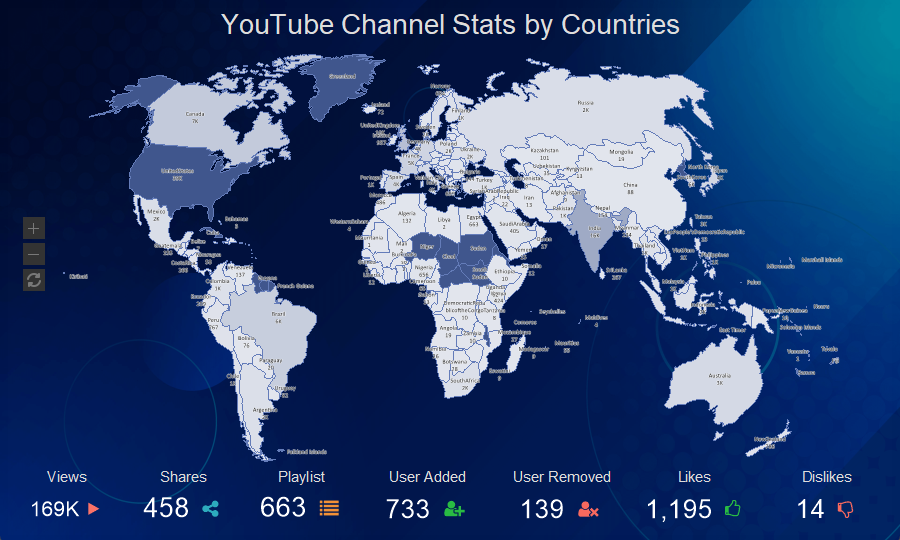
Below is a list of properties that are used to set the watermark style.
Information
To apply the appearance settings, you should consider values of the Allow Use… properties.
| Name | Description |
|---|---|
| Name | Sets the name of the current style. |
| Description | Specifies a description for the current style. |
| Collection Name | Adds an existing style to the style collection or create a new style collection. |
| Conditions | Sets the conditions for conditions for applying the current style if it is included in the styles collection. |
| Text | Defines the watermark text. |
| Text Angle | Defines the rotation angle of the watermark text. |
| Text Brush | A group of properties that is used to select the brush type and text color of a value. |
| Text Enabled | Displays text for the watermark. |
| Text Font | A group of properties that allows you to select a font, define its style and size, for the watermark text. |
| Text Right to Left | Enables the Right-to-Left mode for watermark text. |
| Show Text Behind | Displays text in a watermark in the foreground or background. |
| Image | Adds an image for the watermark. |
| Image Alignment | Defines the alignment of an image on a page, dashboard, or panel. |
| Image Aspect Ratio | Enables the mode to save the proportions of the width to the height of the image. |
| Image Enabled | Enables or disables the image in the watermark. |
| Image Multiple Factor | Changes the scale of the image. |
| Show Image Behind | Displays an image in the foreground or background of the watermark. |
| Image Stretch | Stretches an image to fit the entire page, dashboard, or panel on a dashboard. |
| Image Tiling | Enables the mode to fill the entire page, dashboard or panel with repeated images. |
| Image Transparency | Sets the coefficient (between 0 and 1) for the transparency of an image, where 0 is an opaque image and 1 is a completely transparent one. |
| The following style properties are only relevant for the dashboard and the Panel element on the dashboard panel. They do not apply to report pages. | |
| Weave Angle | Defines the rotation angle of weave icons. |
| Weave Distance | Defines the spacing between weave icons. |
| Weave Enabled | Enables or disables weave in the watermark. |
| Weave Major Color | Defines the color of basic weave icons. |
| Weave Major Icon | Defines an icon for basic weaves. |
| Weave Major Size | Defines the size of basic weave icons. |
| Weave Minor Color | Defines the color of additional weave icons. |
| Weave Minor Icon | Defines an icon for additional weaves. |
| Weave Minor Size | Defines the size of additional weave icons. |