Dashboard with Images
This chapter will cover the following:
Adding Image
Step 1: Run the report designer;
Step 2: Create a dashboard or add it to a current report;
Step 3: Select the Image element in the toolbox of the report designer or on the Insert tab;
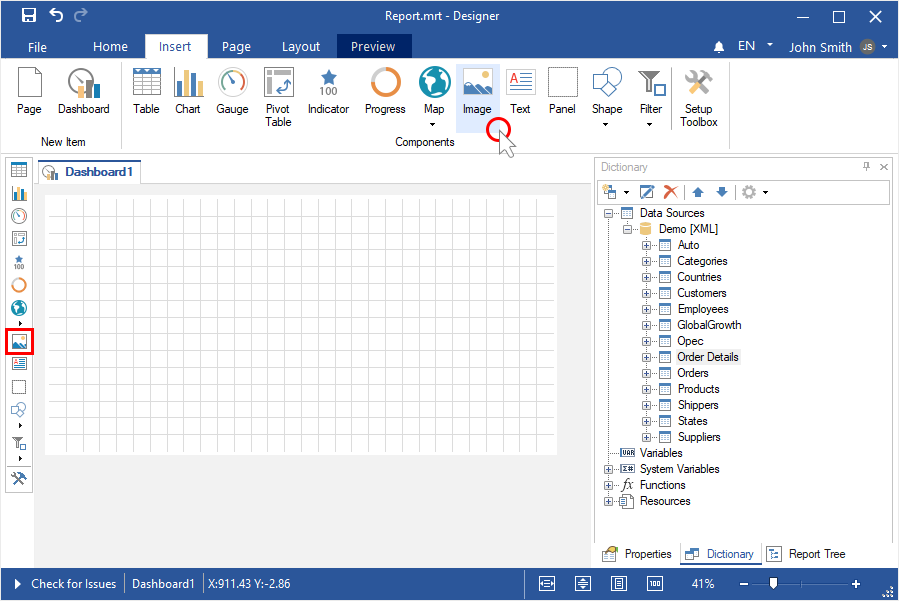
Step 4: Place the item on the dashboard panel;
Step 5: If the element editor does not open, double-click on the image;
Step 6: Download the image from the local storage, select the icon or specify a hyperlink to the image.
Loading an image from a local storage
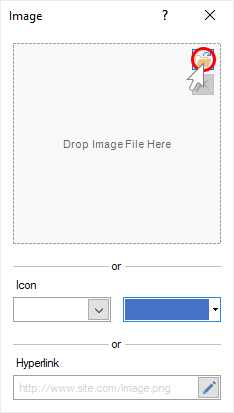
Step 1: Double-click on the Image element to call the editor;
Step 2: Click the Open button;
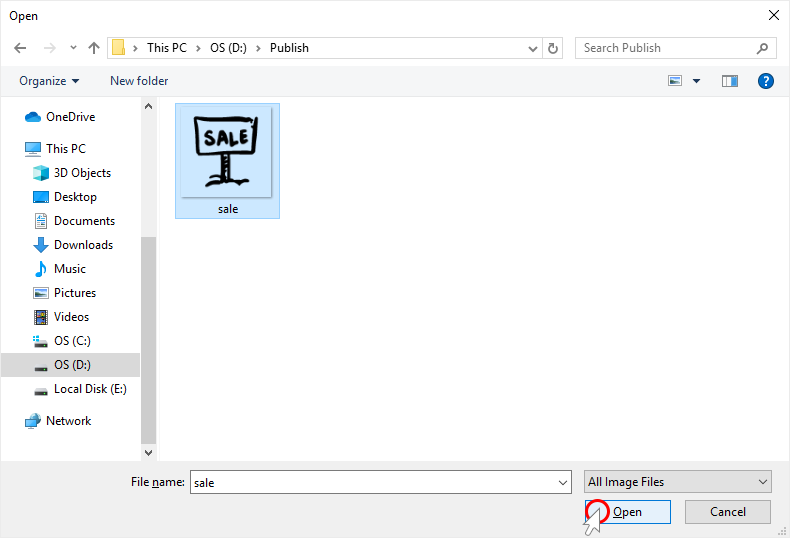
Step 3: Select an image from the local storage, and click the Open button in the dialog box;
Step 4: Close the element editor;
Step 5: Go to the Preview.
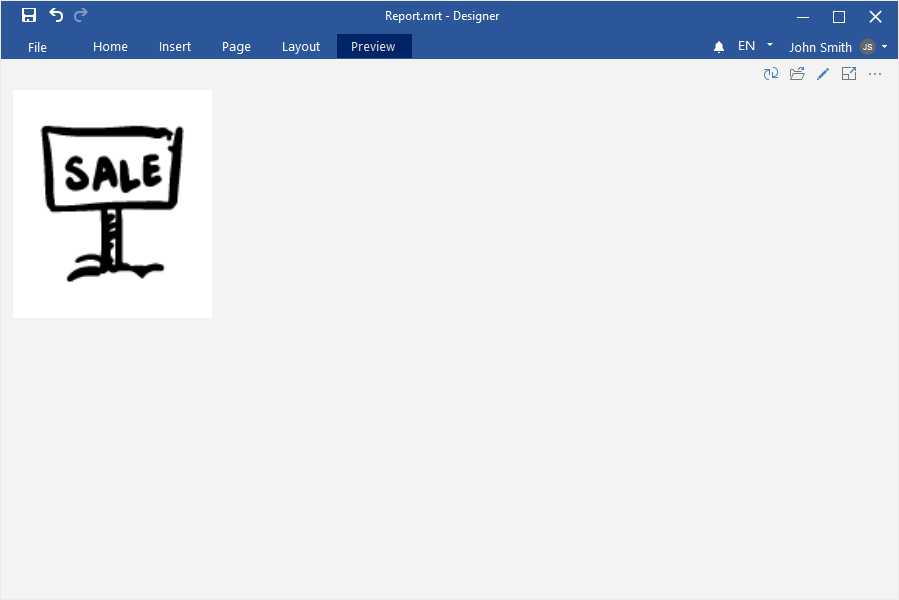
An icon in the Image element
Step 1: Double-click on the Image element to call the editor;
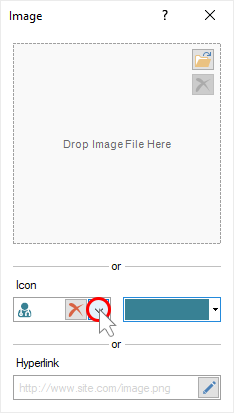
Step 2: Click the Browse button in the Icon field, and select the icon in the drop-down list;
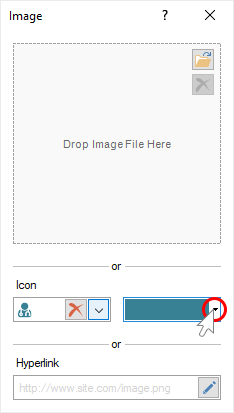
Step 3: Using the color palette element, you can change the color of the icon;
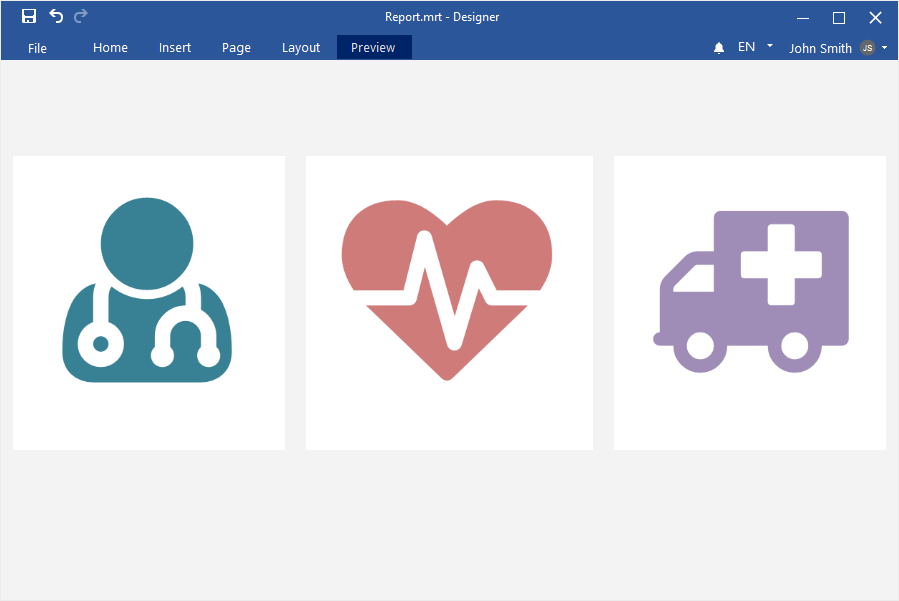
Step 4: Close the element editor;
Step 5: Go to the Preview.
An image by a hyperlink
Step 1: Double-click on the Image element to call the editor;
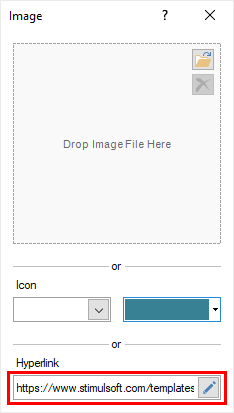
Step 2: Specify a link to the image in the Hyperlink field;
Step 4: Close the element editor;
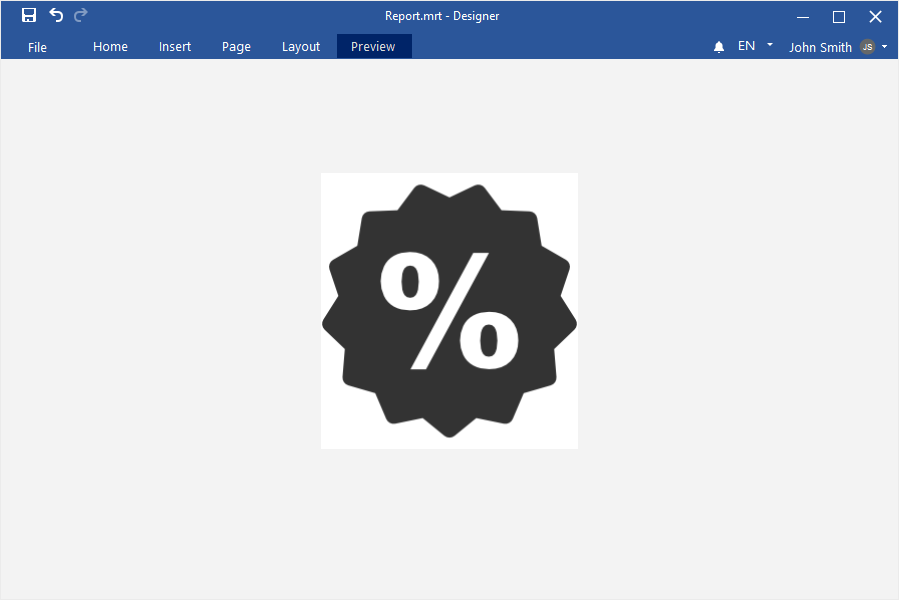
Step 5: Go to the Preview.
Aspect ratio
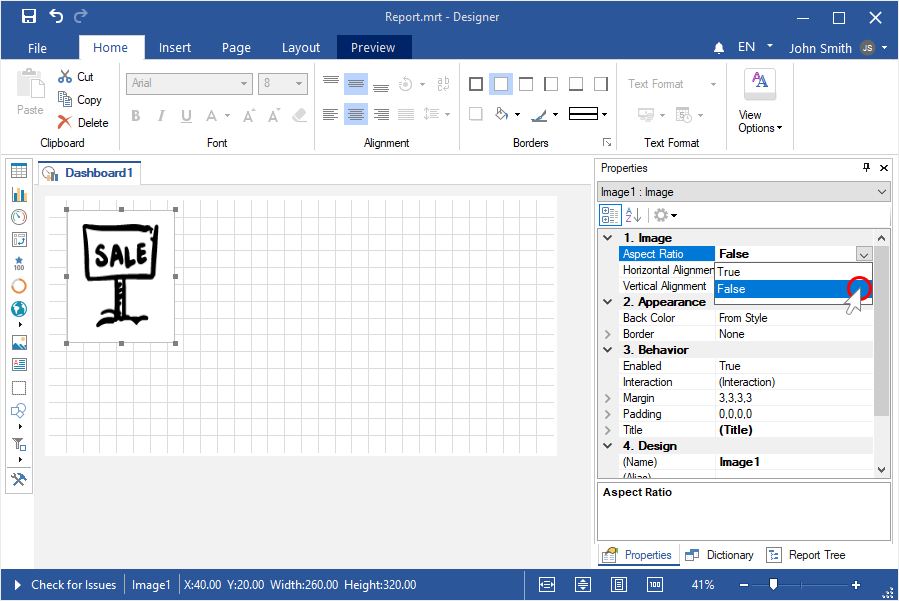
By default, aspect ratio is enabled when loading an image. To disable the aspect ratio, you should do the following:
Step 1: Select the Image element;
Step 2: Set the value to False for the Aspect Ratio property.