

Activation
Trial version
The free trial of Stimulsoft software is a full-featured version. It has a few limitations, which are as follows:
-
The evaluation period is limited to 30 days which starts from the date of the account registration;
-
The Trial watermark is printed on each report page or the dashboard panel.
Information
It is impossible to run the designer without logging into the user account. You can create a free account to start the report creation.
This chapter will cover the following:
Registering a user account on the website
Step 1: Go to the Stimulsoft website at https://stimulsoft.com.
Step 2: Find the Sign Up button on top of the start page and click it;
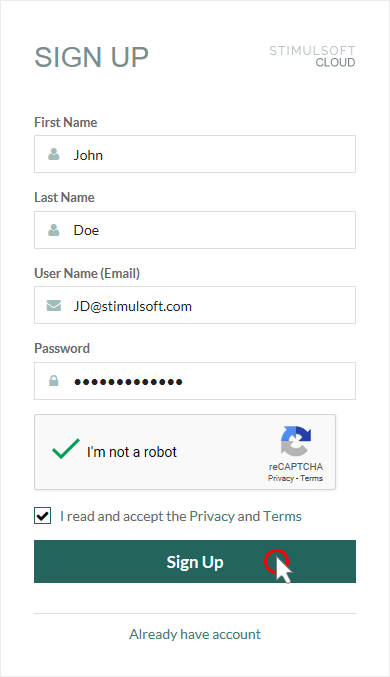
Step 3: Fill in the required fields - first name, last name, email address, and account password. Step 4: Confirm “I’m not a robot”;
Step 5: Read the license agreement. Check the box that you have read and accepted the license agreement.
Step 6: Click the Sign Up button, if you agree and accept the privacy policy and terms of use.
Information
You can register a user account from the report designer. In addition, you can log in using your Google account.
Report Designer Activation
The report designer will be activated when you log in to a user account with a subscription. If, after authentication, the Trial watermark is present on the report pages and dashboards, you probably do not have a subscription for this product.
Purchasing or renewing a report designer
Step 1: Click on the Account menu in the upper right corner of the report designer and select the Subscription item;
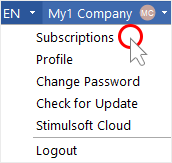
Step 2: In the Subscriptions dialog, hover over the subscription you want to renew and click the Renew button;
Step 3: After that, you will be redirected to the Online store;
Step 4: Select the subscription option you need and click the Request Quote button;
Step 5: Fill in the required fields and click the Get Quote button;
Step 6: Click the Purchase button in the PDF file you get;
Step 7: Make the payment.
Purchasing a new subscription or updating it from the personal account
Step 1: Log in to your personal account and click the Purchase button for a specific product;
Step 2: After that, you will be redirected to the Online store;
Step 3: Select the subscription type you need and click the Request Quote button;
Step 4: Fill in the required fields and click the Get Quote button;
Step 5: click the Purchase button in the PDF file you get;
Step 6: Make the payment.
Logging in to the account using a proxy server
Step 1: Run the report designer;
Step 2: Click the Settings button in the login window;
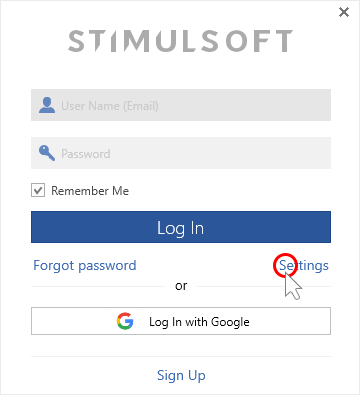
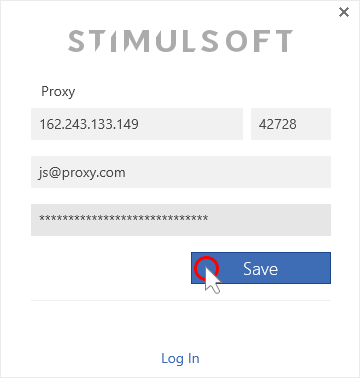
Step 3: Enter the proxy server address, port, username and password in the appropriate fields;
Step 4: Click the Save button;
Step 5: Log in to the designer using your account credentials.
In case of any other situation or if you have any questions, please contact us.
| Phone: +1-209-734-0001 +48-690-104-472 | Email: info@stimulsoft.com sales@stimulsoft.com support@stimulsoft.com |
|---|---|
| Telegram: t.me/stimulsoft | Teams: stimulsoft@gmail.com |