

Sending Report by Email
The Flash Viewer component provides the ability to send reports by email. To activate this feature, you should set the ShowSendEmailButton property of the viewer to true, and define the EmailReport event handler.
Index.cshtml
...
@Html.Stimulsoft().StiMvcViewerFx("MvcViewerFx1",
    new StiMvcViewerFxOptions() {
        Actions =
        {
            EmailReport = "EmailReport"
        },
        Toolbar =
        {
            ShowSendEmailButton = true
        }
})
...
HomeController.cs
...
public ActionResult EmailReport()
{
    StiEmailOptions options = StiMvcViewerFx.GetEmailOptions();

    // Passed from the viewer, can be checked and changed
    // options.AddressTo = "";
    // options.Subject = "";
    // options.Body = "";

    // Should be filled here
    options.AddressFrom = "admin_address@test.com";
    options.Host = "smtp.test.com";
    options.Port = 465;
    options.UserName = "admin_address@test.com";
    options.Password = "admin_password";

    // options.CC.Add("email@test.com");
    // options.BCC.Add("email@test.com");
    // options.EnableSsl = true;

    return StiMvcViewerFx.EmailReportResult(options);
}
...
When you send a report by email the menu to select the attachment format is displayed. This matches the menu to select an export format. After choosing the format, the dialog to put send email parameters such as email recipient, subject and message, will be shown.
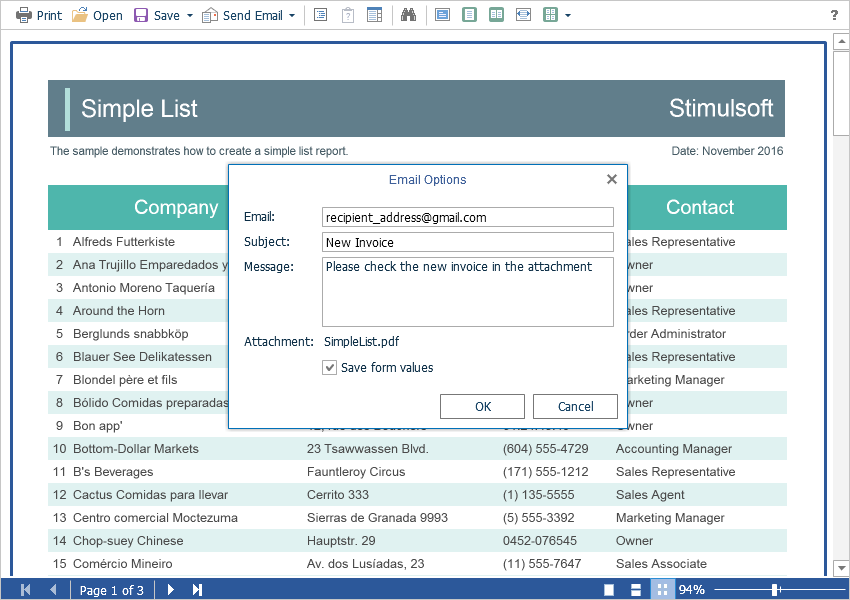
After confirmation of sending the email the above described EmailReport event will be called. You can check and correct the data entered in this form. The exported report file will be attached to the email automatically.
The Flash Viewer component allows you to set the recipient’s email address, which will be used by default. The DefaultEmailAddress property is intended for this purpose.
Index.cshtml
...
@Html.Stimulsoft().StiMvcViewerFx("MvcViewerFx1",
    new StiMvcViewerFxOptions() {
        Email =
        {
            DefaultEmailAddress = "recipient_address@gmail.com"
        }
})
...