

Saving Mode
When you export a report to any format, saving the report will take place in one of the following saving modes: Client or Server. Using the SaveMode property it is possible to change the mode of saving. If the SaveMode property id set to Client, then the report will be saved on the client-side of the WebViewerSL application by means of Silverlight without a server. If the SaveMode property is set to Server, then saving the report will take place directly on the server, and after saving the report will be transferred to the client-side. Depending on the value of the SaveMode property user will see different the lists of export formats. The picture below shows lists of exports in various saving modes:
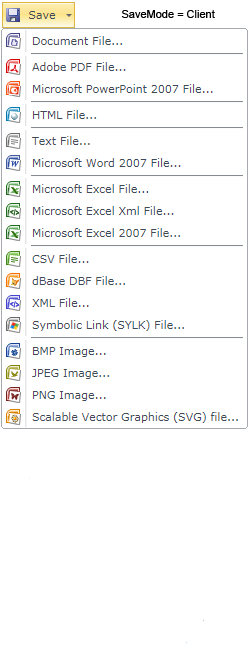
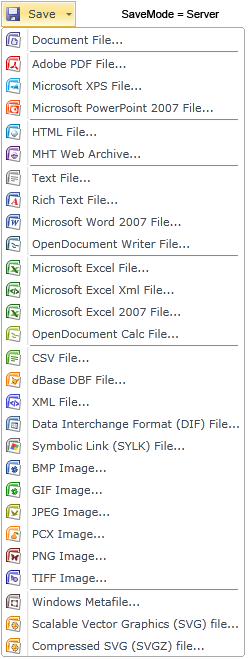
Export Settings
A report opened in WebViewerSL can be exported to many different formats. The list of formats for export can be customized. In other words, you can hide unused export formats. Customization of the list of formats of exports can be made by means of WebViewerSL properties. For example the HTML format, in the Client saving mode. Showing of this format in the list of formats for export depends on the value of the ShowHtmlButton property. The picture below shows the complete list of formats in the Client save mode:
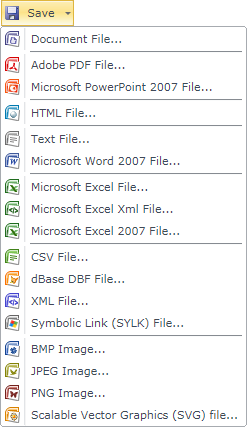
As can be seen from the picture above, the HTML format is displayed in the list of formats that corresponds to the ShowHtmlButton property set to true. If you set this property to false:
Default.Aspx
...
<cc1:StiWebViewerSL ID="StiWebViewerSL1" runat="server" ShowHtmlButton="False" />
...
then the HTML will not be displayed in the list of formats for exporting. The picture below shows a list of formats for exporting without the HTML format:
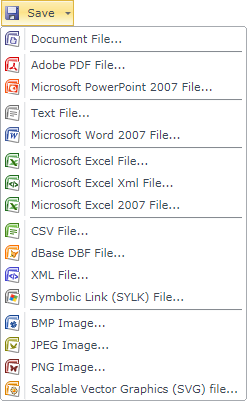
By default, all available formats are listed for exporting.