

Image
Sometimes you need to add an image to the report. It can be photos of goods, workers, statistics, etc. Images can be added from different sources. The component Image is used for this purpose. The Image component can be placed on a report page, data band, header, footer band etc.). When you put this component on the report page the form Image will be called.
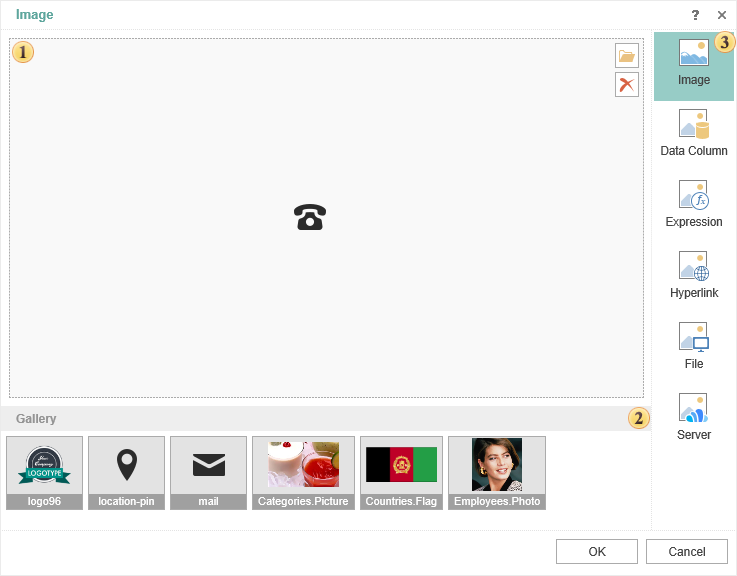
 The panel displays the uploaded image.
-
The button Open. Pressing this button will call the dialog box where you can select an image to upload.
-
The button Delete. Deletes an image.
 The Image Gallery is a list of images from the data dictionary items: data sources, variables, resources.
 The list of sources from where the image can be uploaded.
As can be seen from the figure above, the images can be downloaded from various sources. Consider out in more detail.
- The source Image
In this case, you must click Open and select the image. This is the upload an image from a local source.
- The source Data Column
The image may be contained in the data table, for example, a separate column of data with images. With this type of source, you must select a data column from which the image will be extracted.
- The source Expression
Loading pictures from the expression. In this case the expression will be specified. For example, the image may be contained in a variable. Therefore, it is enough to specify the expression, that is a reference to the variable from which the image is taken.
- The source Hyperlink
The image can be uploaded from a URL. You can also specify a link to the report resource by the next template resource://nameimage.
- The source File
The image can be retrieved from a file that will be uploaded from a local source. With this type of source, you need to press the
 button and select a file.
- The source Cloud
If the image will be attached to the report, they will be displayed in this source.